How to Install Python on Windows (2026 Complete Guide)
If you are beginning your Python programming journey, your very first step is setting up Python on your Windows machine. If you are new to the language, you can start with our article on What is Python? Uses, Advantages, and Learning Path.
In this tutorial, you will learn two recommended installation methods: a fast command-line method using Windows Package Manager (winget) and the full graphical installer from the official Python website. By the end, Python will be configured in your environment, and you will run your first program.
Method 1: Installing Python via Command Line (winget)
The Command Line Interface (CLI) allows you to automate software installations directly from your terminal. Windows includes winget (Windows Package Manager), which downloads and installs the latest verified software without opening a browser.
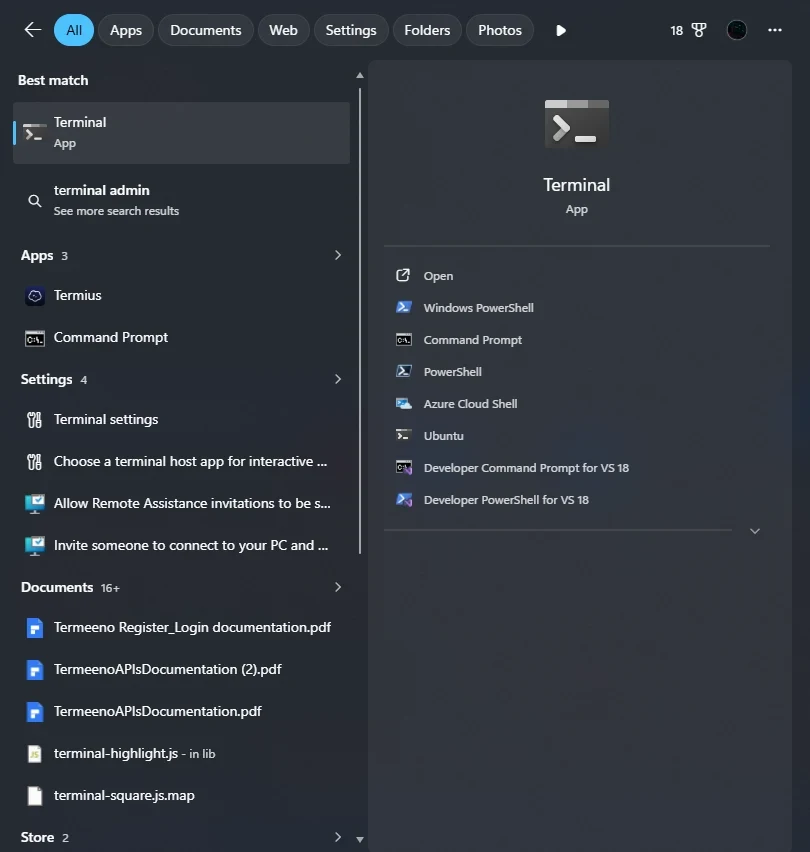
1. Open Terminal / PowerShell
Press the Windows Key, type Terminal, and launch Windows Terminal or PowerShell.
2. Check if Python is Already Installed
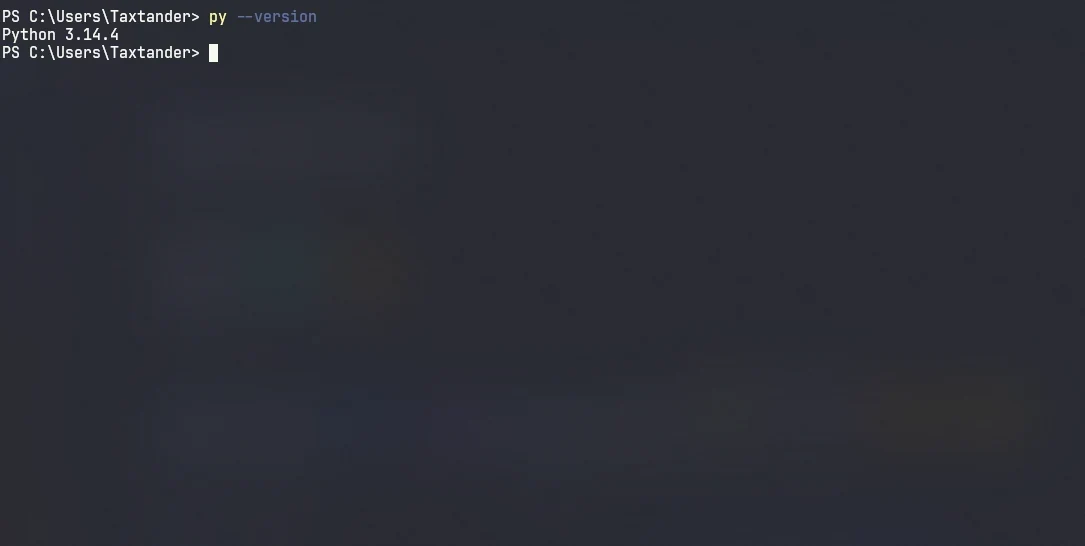
Run:
python --version
- If you see output like
Python 3.14.x, Python is already installed. - If you see an error or the Microsoft Store window opens, proceed with the installation.
3. Install Python with winget
Search for available Python packages:
winget search Python
Install the latest version using its exact package ID:
winget install --id Python.Python.3.14 -e
--id Python.Python.3.14: Specifies the exact package ID.-e(or--exact): Ensures winget selects the exact package match.
Accept the license prompt by pressing Y and Enter. Winget will automatically download and install Python.
4. Verify the Installation
Close your current terminal window and open a fresh Terminal window so the updated system PATH is loaded. Then run:
python --version
5. Run Python Interactive Shell (REPL)
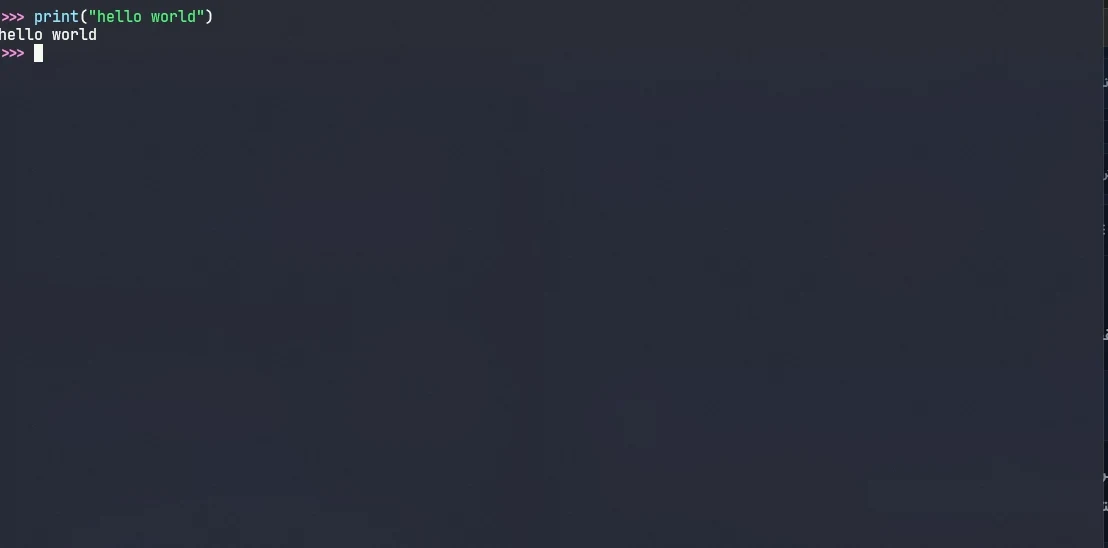
Type python to open the interactive Read-Eval-Print Loop (REPL):
python
Test with a simple print statement:
>>> print("Hello, Python!")
To exit the shell, type exit() or press Ctrl+Z and Enter.
Method 2: Download Python from the Official Website
The official graphical installer provides full control over installation paths and optional features.
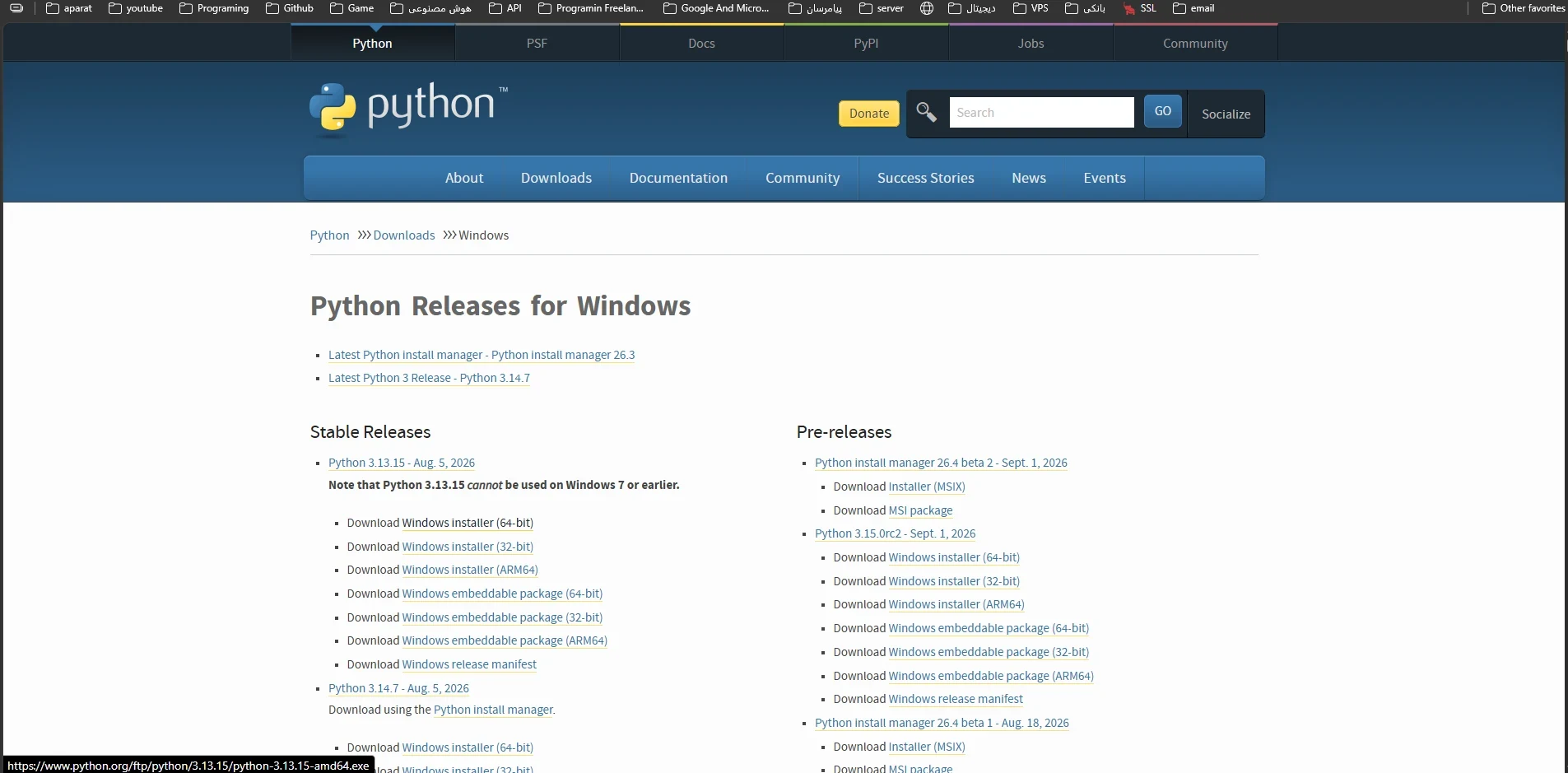
1. Visit the Official Python Download Page
Always download Python directly from the official source:
2. Run the Installer
Launch the downloaded .exe installer (for example, python-3.14.x-amd64.exe).
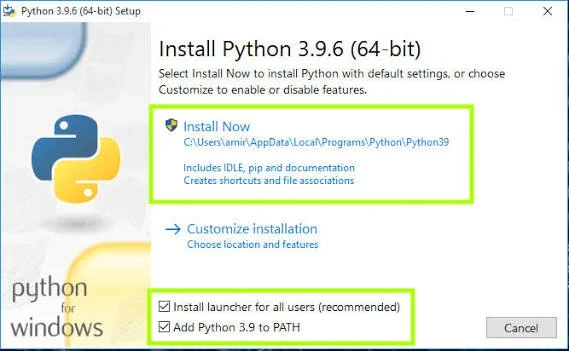
3. Crucial Step: Check "Add python.exe to PATH"
On the very first screen of the installer, ensure the checkbox "Add python.exe to PATH" is checked at the bottom.
- Why is PATH important? PATH tells Windows where to locate executable files. Checking this allows you to type
pythonorpipfrom any directory in your terminal without specifying full file paths.
4. Click "Install Now"
Click Install Now and allow administrator permissions when prompted.
5. Disable MAX_PATH Limitation (Optional & Recommended)
At the end of the installation, click "Disable path length limit". This removes the traditional 260-character path limit on Windows, preventing issues with deeply nested Python virtual environments and packages.
Troubleshooting Common Setup Issues
1. "python is not recognized as an internal or external command"
- Cause: Python was not added to the Windows environment
PATH. - Fix: Re-run the installer, select Modify, click Next, and check Add Python to environment variables. Alternatively, add your Python install folder (e.g.,
C:\Users\<User>\AppData\Local\Programs\Python\Python314) to User PATH in Windows Environment Variables.
2. Running python Opens Microsoft Store
- Cause: Windows has built-in App Execution Aliases redirecting uninstalled
python.execalls to the Store. - Fix: Open Windows Settings -> Apps -> Advanced app settings -> App execution aliases, and toggle off
App Installer (python.exe)andApp Installer (python3.exe).
Next Steps
Now that Python is successfully installed on your computer, you are ready to write software:
- Set Up a Code Editor: Download Visual Studio Code (VS Code) and install the official Python extension.
- Explore GUI Programming: Learn how to build graphical desktop apps with Tkinter in Python.
- Build a Real Project: Build a Graphical Calculator with Python & Tkinter.
Tags for this article:
Related Articles

Building a Graphical Calculator with Python and Tkinter
Complete step-by-step tutorial on building a desktop GUI calculator with Python and Tkinter; covering window layout, dynamic buttons, evaluation logic, and robust error handling.
What is Tkinter? Python GUI Development Guide for Beginners
Comprehensive Tkinter tutorial for building desktop graphical user interfaces (GUIs) in Python; from core widgets and geometry managers to building a temperature converter app.
What is Python? Uses, Advantages, and Learning Path
Python is a high-level, open-source, general-purpose programming language. Learn why it has become the world's most popular language, what it is used for, and how to get started.